Auto Clicker
iPhone Built-in Voice Control Guide
Are you tired of repetitive, mechanical clicking operations when playing mobile games? You can actually use iPhone's built-in "Voice Control" feature to create an auto clicker and free your hands - no third-party apps needed!
This method is especially perfect for games like "LoveMoney Game" that require lots of repetitive clicking.
No Download
Uses iPhone built-in features
Precise Control
Custom click positions
Repeat Actions
Set repeat count
📱 Detailed Setup Steps
Access "Accessibility" Settings
First, open your iPhone and find the "Settings" app. In the Settings menu, scroll down and find and tap "Accessibility".
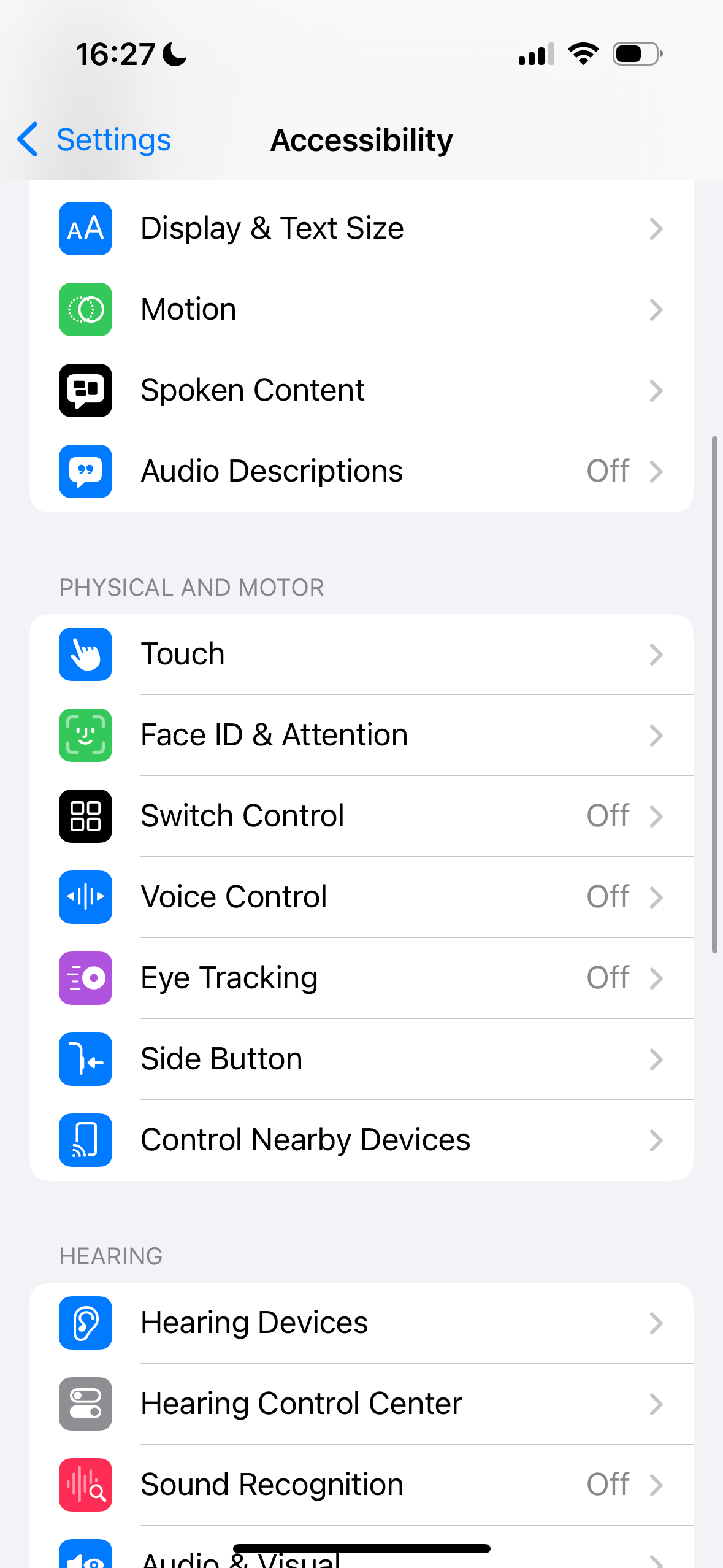
�?Look for "Voice Control" in the Accessibility menu
Settings �?Accessibility
Enable "Voice Control"
In the "Accessibility" menu, you'll see many options. Scroll down to find "Voice Control" and tap to enter. Turn on the "Voice Control" switch on the right side to make it green.
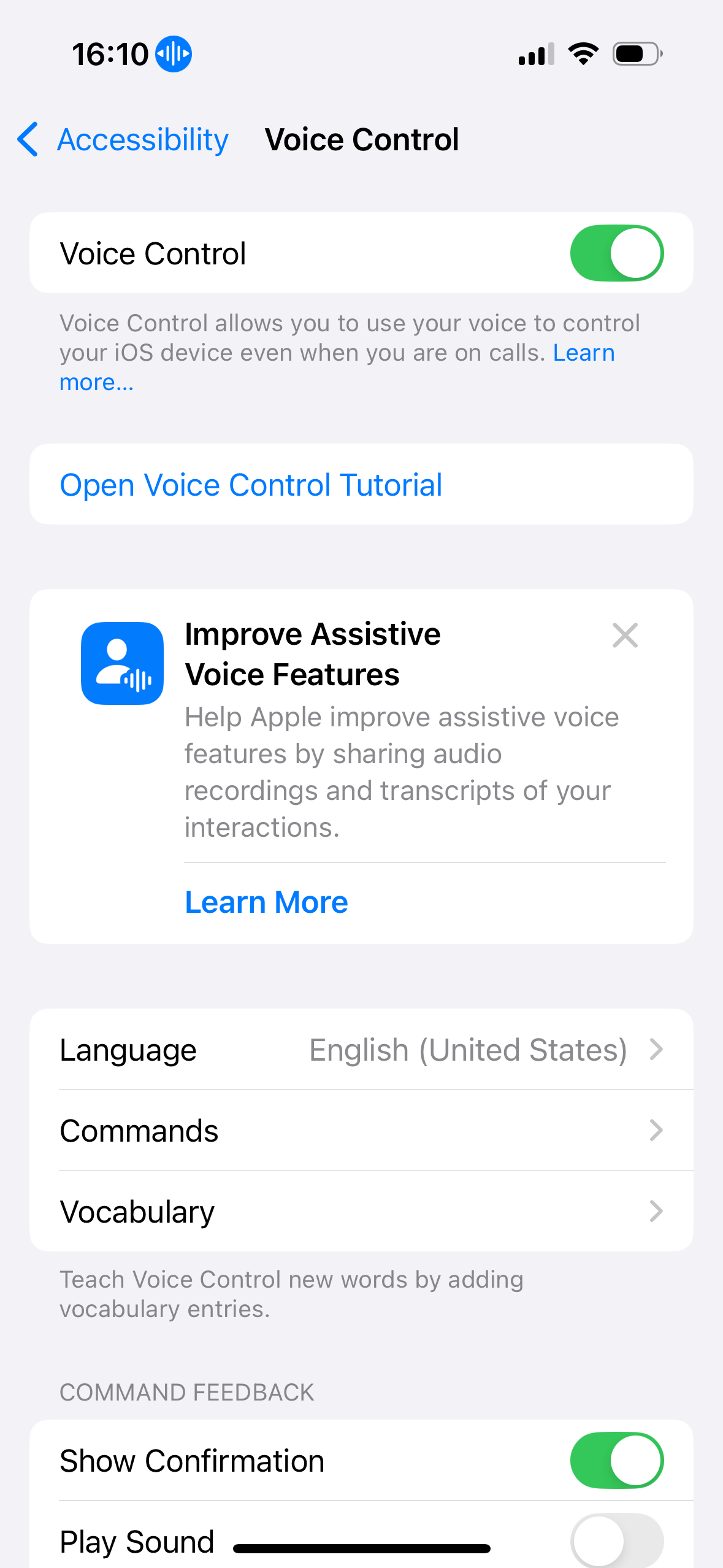
�?This is what the Voice Control settings screen looks like
💡 Tip: Once the switch is enabled, your phone will be able to receive and recognize voice commands.
Create Custom Command
After enabling "Voice Control", go back to the "Voice Control" menu. Continue scrolling down, find and tap "Commands".
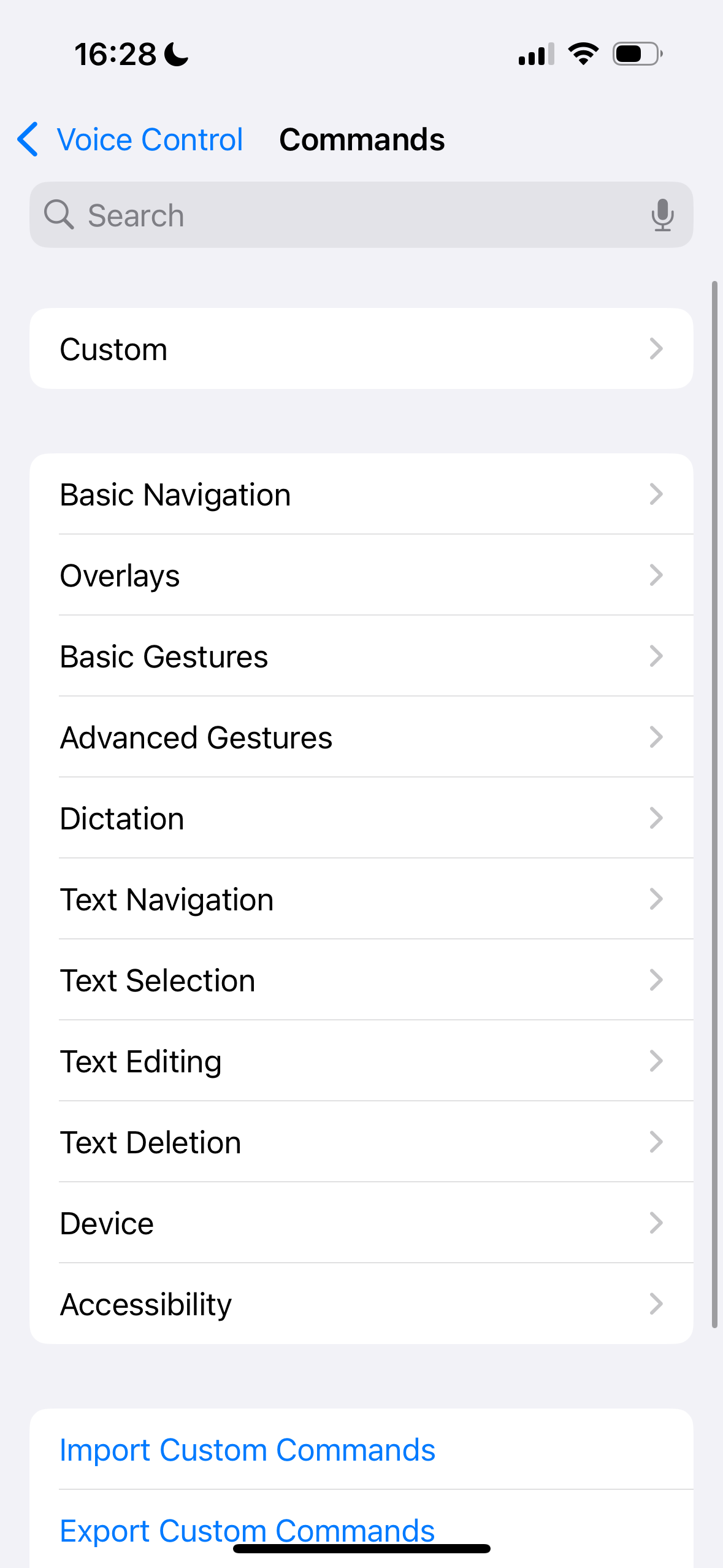
Commands menu
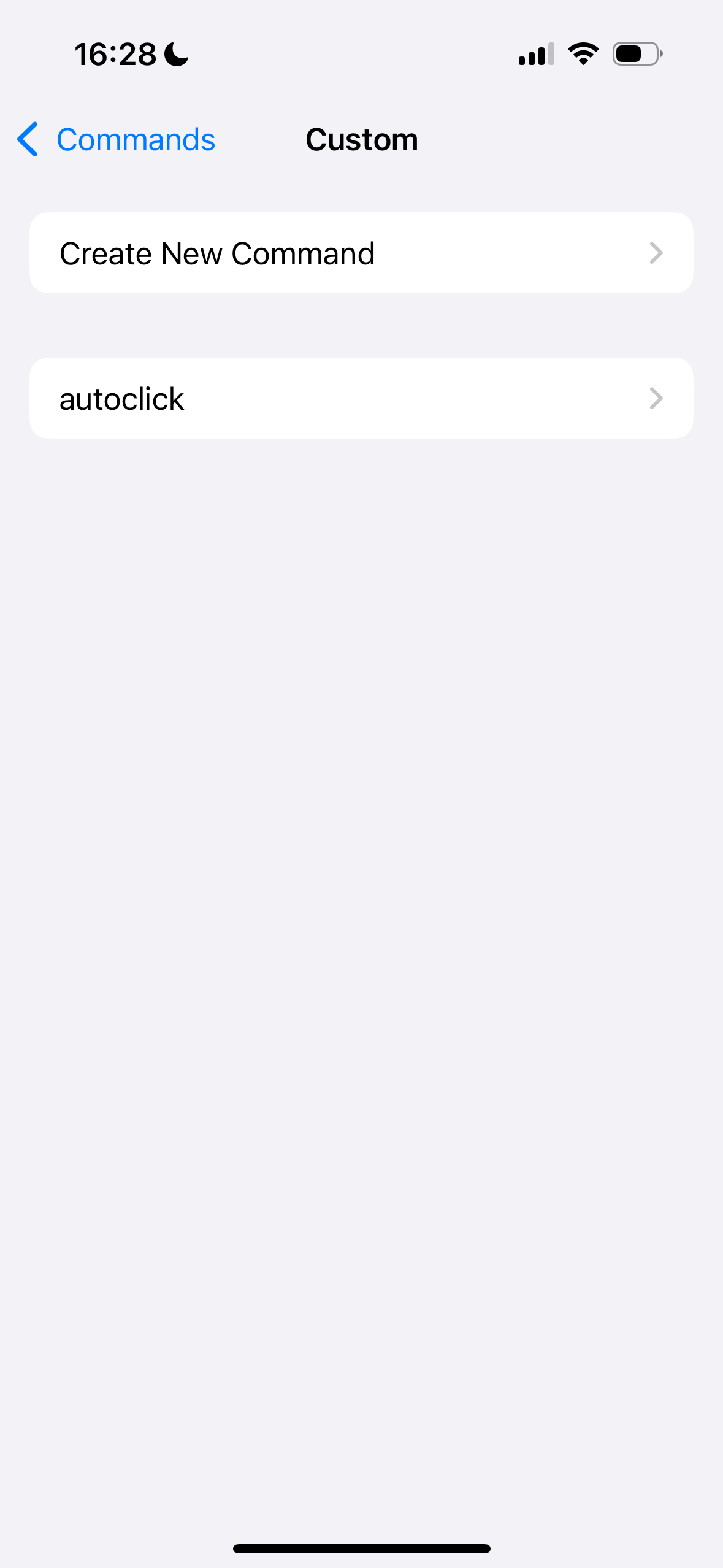
Custom commands
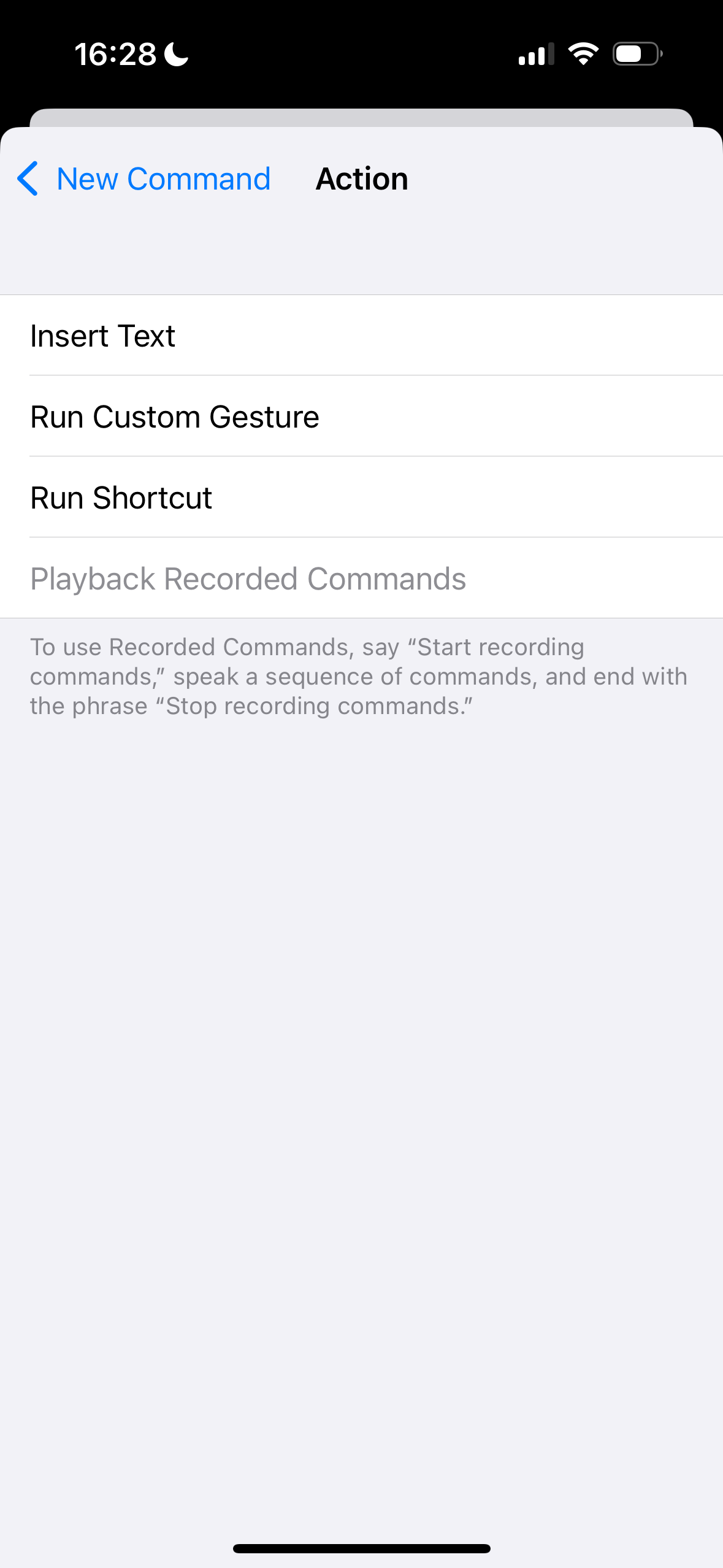
Select action
Follow these steps: Go to "Commands" �?"Custom" �?"Create New Command", then set the action to "Run Custom Gesture".
Setup Key Points:
- Set Voice Phrase: In the "Phrase" field, enter the voice command you want to use, like "auto click"
- Set Action: Tap "Action" option and select "Run Custom Gesture"
Record Click Gesture
In the "Run Custom Gesture" interface, you'll see a blank screen. Here, you need to mimic the clicking actions in the game by rapidly tapping the screen multiple times. For example, if you need to auto-click the screen center, tap rapidly in the center area multiple times.
💡 This process is actually "recording" your gesture
After completing the gesture recording, tap the "Save" button in the top right corner. Your custom command is now created!
Enable Auto Click in Games
Now, go back to your game interface. When you need auto-clicking, simply say the voice phrase you set in step 3, for example: "auto click". Your iPhone will automatically execute the gesture you just recorded and start clicking the screen continuously.
🎮 Perfect for LoveMoney Game!
Say "auto click" to start auto-clicking Harvey for money
🎥 Video Demonstration
Watch this quick video demonstration showing how to set up and use iPhone Voice Control for auto-clicking in action!
Live Demo: See how easy it is to set up Voice Control auto-clicking on iPhone for games like LoveMoney Game.
🚀 Extra Tips: Repeat Operations
Advanced Repeat Commands
If you need the auto-click action to repeat multiple times, you can use Voice Control's built-in repeat commands:
For 10 Times
"repeat 10 times"
Execute your recorded gesture 10 times in succession
For 99 Times
"repeat 99 times"
Execute your recorded gesture 99 times - perfect for longer gaming sessions
💡 Pro Tip
You can customize the number of repetitions based on your needs. This way, you can easily control the number of auto-clicks according to your requirements.
⚠️ Important Tips
Ensure Voice Control is Active
Make sure your "Voice Control" feature is enabled throughout the setup and usage process. You'll see a microphone icon at the top of your screen when it's active.
Use in Quiet Environment
This feature is based on voice recognition, so ensure you use it in a relatively quiet environment to improve recognition accuracy and prevent accidental triggers.
Universal Application
This method works for all scenarios requiring repetitive clicking operations, not limited to games. You can use it for apps that need frequent refreshing or any repetitive tasks.
Battery Consideration
Voice Control feature may consume more battery. Consider connecting to a charger during extended gaming sessions, or set time limits for auto-clicking.